
Equipment
The equipment tab of the Inventool window.
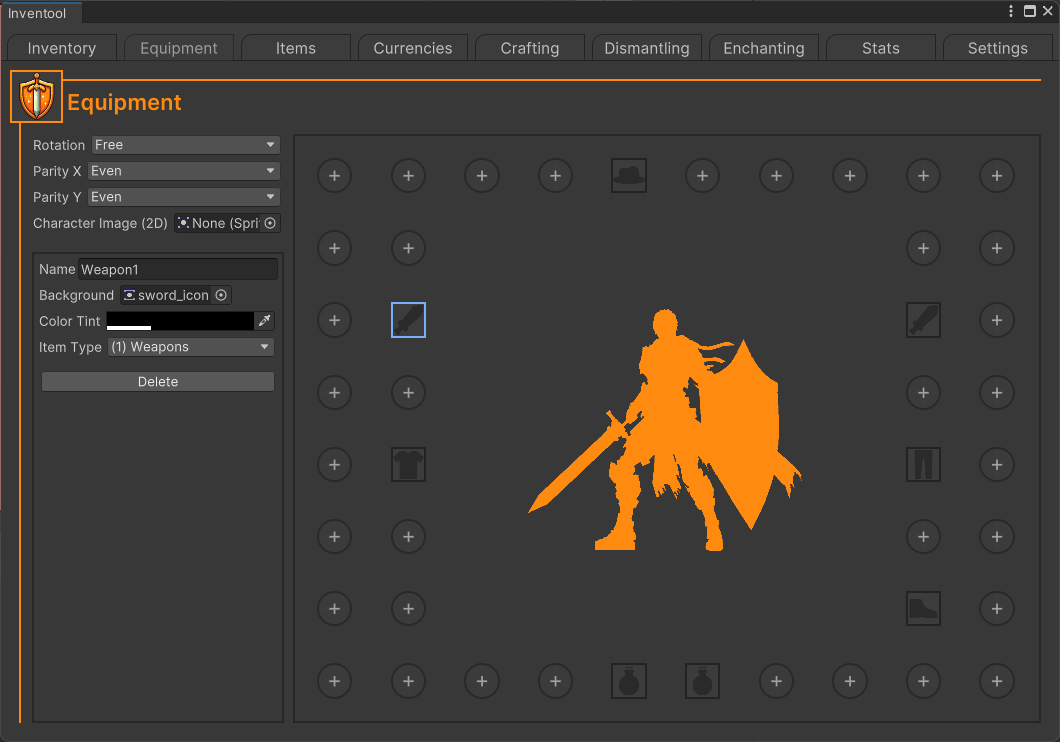
The equipment section allows you to create equipment item slots with item type restrictions. Click any plus button to add an item slot in that position. Item slots can be deleted from the left-hand side after they are selected.
Properties
General
Rotation
The character viewer rotation type.
Parity X
The equipment grid's X-axis parity.
Parity Y
The equipment grid's Y-axis parity.
Character Image
A sprite to display instead of the default image or the 3D character view. This is meant for 2D games only.
Use Equip Fallback
If enabled, when an item is attempted to be equipped through the "Equip" button and there are no slots available for it, the item will replace an existing one.
Rotation Types
Free
Free character rotation.
X
Rotation on the X-axis only.
Y
Rotation on the Y-axis only.
Parity Types
Even
An even number of slots on a specific axis.
Odd
An odd number of slots on a specific axis. A row or column will be hidden for this to be possible.
Item Slot
In the left-hand box item slot options will be visible when an item slot is selected.
Name
The name of the item slot. This can be used to search for a slot through code.
Background
The background icon of the item slot.
Color Tint
The color tint of the background icon.
Item Type
The item type that the slot will accept. If a parent item type is set, all of it's subtypes (or children) will be accepted. However, if a sub item type is set, it's parent will not be accepted.
Expanding on Item Slot Restrictions
Let's say you have a parent item type called Weapon and it has 2 subtypes (also known as child types) called Sword and Staff. If an item slot's item type is set to Weapon, items with the type Weapon, Sword, and Staff will be acceptable. However, if the item slot's item type is set to Sword, only items with the Sword type will be acceptable.